Analytics FAQ & Troubleshooting
What is the difference between Chat Starts and Sessions?
- Chat Start: Counted every time the chat widget is technically loaded/started by a user.
- Session: Starts only when a user interacts or sends messages for the first time within a 30-minute window.
Example:
Imagine you have two agents: Agent A (Welcome) and Agent B (Service).
- A user opens
Agent A. (1 Chat Start, 1 Session). - The user clicks a button to proceed/jump to
Agent B. - Technically,
Agent Bloads. (1 Chat Start for Agent B). - However, since the user is moving continuously through the flow across several agents, no new Session is recorded for Agent B. The session counts towards the session initiated in Agent A.
Why are there no (or few) new sessions in my agent, even though it was started?
This usually happens when agents are chained together. A Session is attributed to the first agent a user visits (the entry point).
If users enter via Agent A and switch to Agent B, the session statistics belong to Agent A. To analyze the combined traffic, we recommend looking at the Folder Analytics (you can group agents into folders to aggregate their data).
Why is the number of Sessions sometimes higher than the number of Chat Starts?
Typically, Chat Starts are higher than Sessions. However, in rare scenarios, you might see more sessions. This occurs when a user re-engages with an existing, open chat instance after a period of inactivity (causing a new session timeout but no new technical "start"):
- Background Tabs: A user leaves the chat open in a browser tab, does something else for >30 minutes, and then returns to type a message.
- Delayed Interaction: An auto-opening chat starts a session. The user ignores it initially but interacts hours later.
- Long-running Processes: Campaigns involving timers (e.g., Advent Calendar) or "Jump Back" buttons where users return to the chat frequently without reloading the page.
How are Bounces calculated?
Bounces are defined as sessions with zero user interactions.
Calculation: Total Sessions - Sessions with at least one interaction.
Is my Bounce Rate too high?
There is no single "correct" bounce rate, as it depends heavily on the context:
- Auto-Open Agents: If your chat opens automatically on a website, high bounce rates are normal (many users just close it).
- User-Initiated Agents: If a user clicks a "Help" button, the bounce rate should be low.
- Campaigns: Social media ad traffic often has variable bounce rates.
How to reduce bounces and increase conversion:
- Offer immediate value: The first message should offer a meaningful choice (e.g., "Do you want to see the prices or take the quiz?").
- Avoid "Text Walls": Don't send more than two text bubbles without a pause or user interaction. Keep texts short (chat style).
- Visual Engagement: Use GIFs, images, or carousels early in the chat to grab attention.
How can I find out exactly where users drop off?
Use the Drill-Down Tab. It visualizes user flow and drop-offs step-by-step.
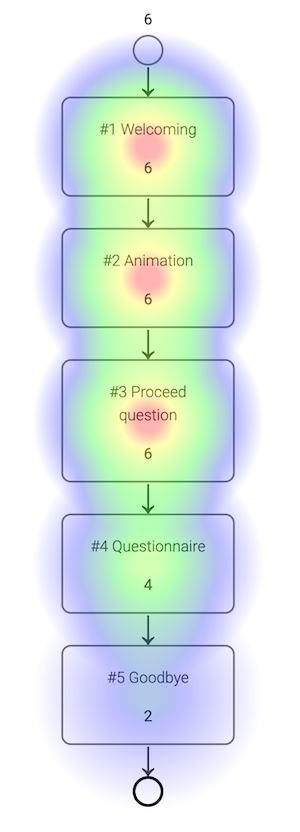
Example Analysis:
- In the image above, the process started 6 times (top circle).
- The first 3 modules were visited by all 6 users.
- The "Proceed" question (Module #3) acts as a filter.
- Module #4 (Questionnaire) shows only 4 views. This means 2 users dropped off at the "Proceed" question.
- Module #5 (Goodbye) shows 2 views. Another 2 users dropped off during the questionnaire.
Why does a later module have more views than an earlier one?
If Module B (step 2) has higher numbers than Module A (step 1), it is usually due to one of these reasons:
- Versioning: Module A was added after the chat went live. Older sessions skipped A but hit B.
- Conditional Logic: Module A has a condition attached (e.g., "Only show to iOS users"), causing some users to skip it and go directly to Module B.
Why does my CSV Export contain more entries than the Analytics view?
This is often caused by test data.
- Analytics View: By default, actions performed while testing in the LoyJoy Manager are excluded to keep your statistics clean.
- CSV Export: This is a raw database dump. It includes all saved variables, including those generated during internal testing.
Therefore, having more rows in the CSV than "Users" in the analytics chart is expected behavior.
How long does it take for new data to appear in Analytics?
- Event Data: New user interactions appear almost instantly.
- Structural Changes: If you create a new agent or modify the flow, allow up to one hour for the analytics structure to update fully.
Testing Note: By default, chats simulated in the backend (Manager Preview) do not count towards analytics. You can change this behavior in the preview settings if you wish to test data tracking.