Products 🛍️
LoyJoy allows you to manage a database of products in the platform. These products can be used to offer customers bespoke recommendations.
Products in LoyJoy
You can manually add or import products to LoyJoy. Products can be used in the product feed module.
The following product properties are available and will be shown in the chat interface:
title: Name of the productdescription: Description of the product, always shown in the chat interfaceurl: URL to the product page, will be linked from image and product titleimage_url: URL to the product image, will be displayedprice: Price of the product (text with currency symbol)compare_at_price: Price before discount (text with currency symbol), will be shown as strikethroughheader: Header text, will be shown above product titlebutton_text: Text for the product button, default is "View Product"button_url: URL for the product button, if not set, the product title and image will link to the product page
Another important property is the locale property. This property is used to
determine which product to show based on the user's locale. If a product with the
same locale as the user's locale is found, it will be shown. If no product with
the user's locale is found, none can be displayed.
Additionally, you can add custom properties to products. These properties will not be shown in the chat interface but can be used to e.g. select which products to display in the product feed module. This selection can be done using SQL query syntax.
Managing the Product List
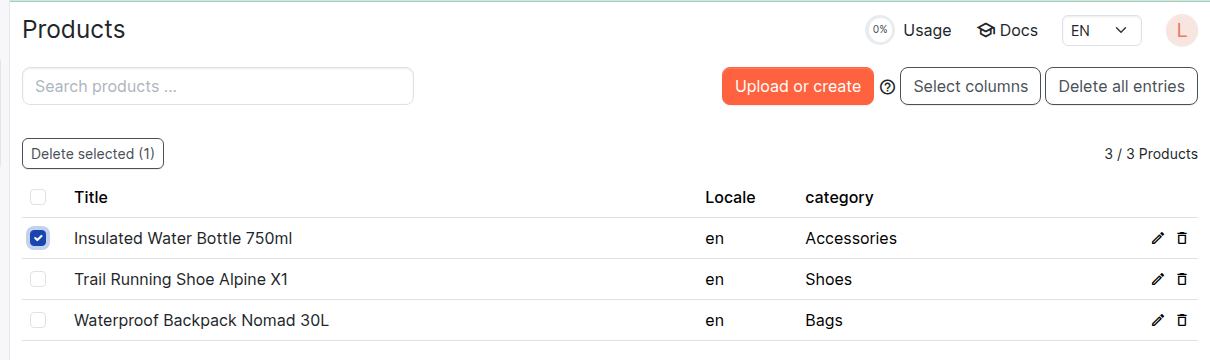
The product list lets you search, sort, and select products:
- Search: Use the search field to filter products by any property.
- Sort: Click a column header to sort the list by that column, click again to reverse the order.
- Configure columns: Click "Select columns" to add up to 5 of your custom properties as additional columns in the list.
- Bulk delete: Select the checkbox next to one or more products and click "Delete selected" to remove them all at once.