Product Feed Module
Introduction
Present the products of your external data feed to customers. An external data source can be connected to LoyJoy using a connector.
Typical Use Cases
The Product Feed module is a powerful tool for displaying a list of up to 12 products that best match your customer's preferences, as determined by a preceding chat flow. The module pulls its content from various connectors, so your customers always receive the most up-to-date and relevant product listings.
How to Use the Module
To use the module, you first have to upload your products or provide them as a Google Sheet or JSON API. Then, the products can be displayed in the chat. Which products are shown is controlled by an SQL-based filter in the connector. Check out the guide for more information on how to set up a product database and use it for different use cases, such as location search or contact search.
Connectors
To use the Product Feed module, you need to connect your external data source. LoyJoy supports three types of connectors: Database, JSON, and Google Sheets. Learn how to use a connector here.
For assistance with the configuration, please reach out to our support team.
Example of a Google Sheets Connector
To use the Module Product Feed effectively, you should structure your data in Google Sheets as follows:
- Start with the "title," which represents the product name.
- Provide a "description" to offer a brief overview of your product.
- You may want to add a "header" which appears right above the title as a topline.
- Specify the "price" of the product.
- Include the "image_url," which should contain the direct link to the product image.
- Finally, insert the "url" that directs the customer to your website for product purchase. While the "description," "price," "image_url," and "url" fields are not mandatory, they are highly recommended for an optimal user agent.
See here for an example Google Sheet. As described, the first row is expected to hold the column names.

Using Database and JSON Connectors
For Database and JSON connectors, ensure your data source includes similar fields (title, description, header, price, image_url and url).
Configuring SQL Query
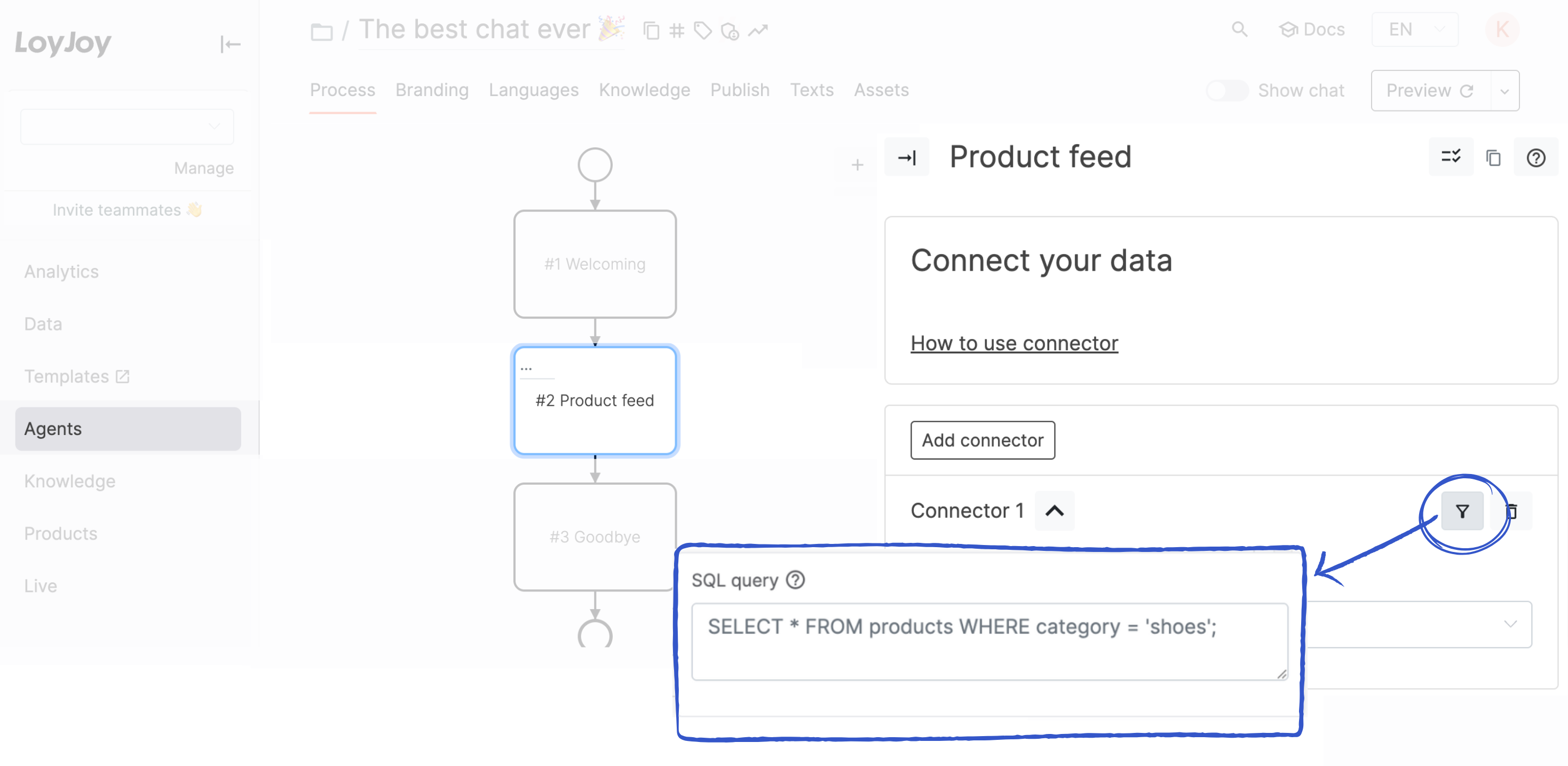
To define a filter for the product selection, you can configure an SQL query in your connector. You can see all SQL filters here.
Show add to cart button
To enable the add to cart button, you need to add a new field named button_url to your products. If you are using shopify, you can use the shopify add-to-cart button link: https://yourstore.com/cart/add/{variant_id}.
Additional Information
- Connectors: You can use Database, JSON, and Google Sheets as connectors. Multiple connectors can be added.
- No Products Found: If no products are selected, a custom text can be displayed by entering it in the "If no products are found" section.