Newsletter Opt-In Module
Introduction
The Newsletter Opt-In Module allows you to ask customers for their consent to receive newsletters. It supports both single and double opt-in processes. Double opt-in is mandatory in some regions, requiring confirmation via email before the subscription is finalized. This ensures compliance with local regulations.
Typical Use Cases
- Email Campaigns: Use the module to grow your email list by obtaining consent from customers to receive newsletters, promotions, and updates.
- Regulatory Compliance: Implement the module to ensure compliance with regional laws that require explicit customer consent, such as GDPR in Europe.
How to Use the Module
Email Requirement
This module requires the customer’s email address. You can collect it using the Email module or Sign-in module before proceeding with the opt-in.
Re-ask Frequency
You can control how often the opt-in request appears when customers use the chat repeatedly.
- Enter
0to ask every time the module runs (unless already consented). - Enter a positive number to wait that many days before asking again.
- Leave it blank to never re-ask.
Text Customization
Tailor the opt-in prompt text to improve consent rates. Engaging and clear messaging can significantly increase the likelihood of customers opting in.
Newsletter Opt-In Tag
Use this field to manage and differentiate various newsletter opt-ins. The tag adds a suffix to the variable name of the consent in snake case. This allows for better tracking in chat histories and can be easily identified in the Consent tab.

Opt-In Process
- Single Opt-In:
- Automatic: The opt-in is triggered without further user interaction.
- Manual: Users confirm their consent within the chat.
- Double Opt-In:
- Can be enabled or disabled. When enabled, a confirmation email is sent. If disabled, it operates as a single opt-in.
- You can customize the DOI email body with an HTML email template. More details on email configuration can be found below.
- Ensure the confirmation email contains ${add_optin_url} to include the necessary link. To use this properly, embed it in a button or an
<a>tag like so:<a href="${add_optin_url}">Give Opt-In</a>.
Under GDPR, a double opt-in (DOI) is mandatory for email marketing consent. However, if you are handling the DOI process through external systems, it can be beneficial to use LoyJoy's single opt-in feature.
Double Opt-In with External Systems
If you prefer managing the double opt-in through your external systems rather than sending the confirmation email via this module, you can disable the built-in DOI email. Use the signal module (e.g. with the event newsletter_single_opt_in) and integration modules to trigger the double opt-in process in your external systems.
Data Storage
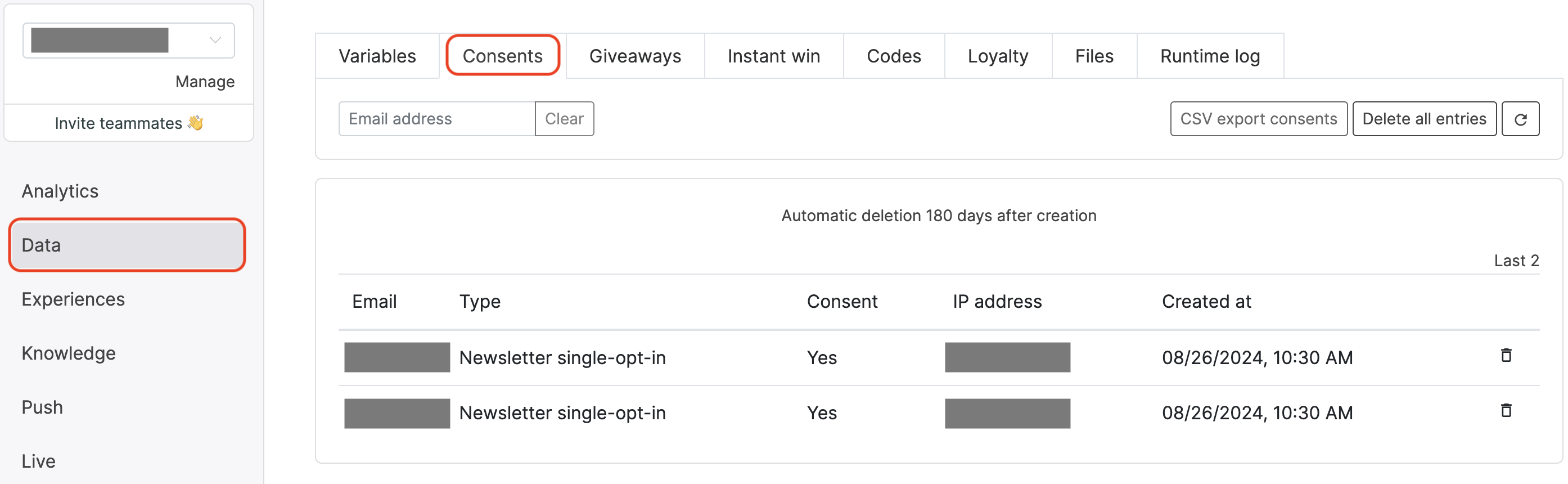
Consents are stored under the Data menu, specifically in the Consents tab. From there, you can export data as a CSV file, which includes key details like the email, opt-in type (single or double), IP address, and the date of consent. Entries are automatically deleted after 180 days. Data is securely hosted in LoyJoy’s EU-based cloud.
HTML Template
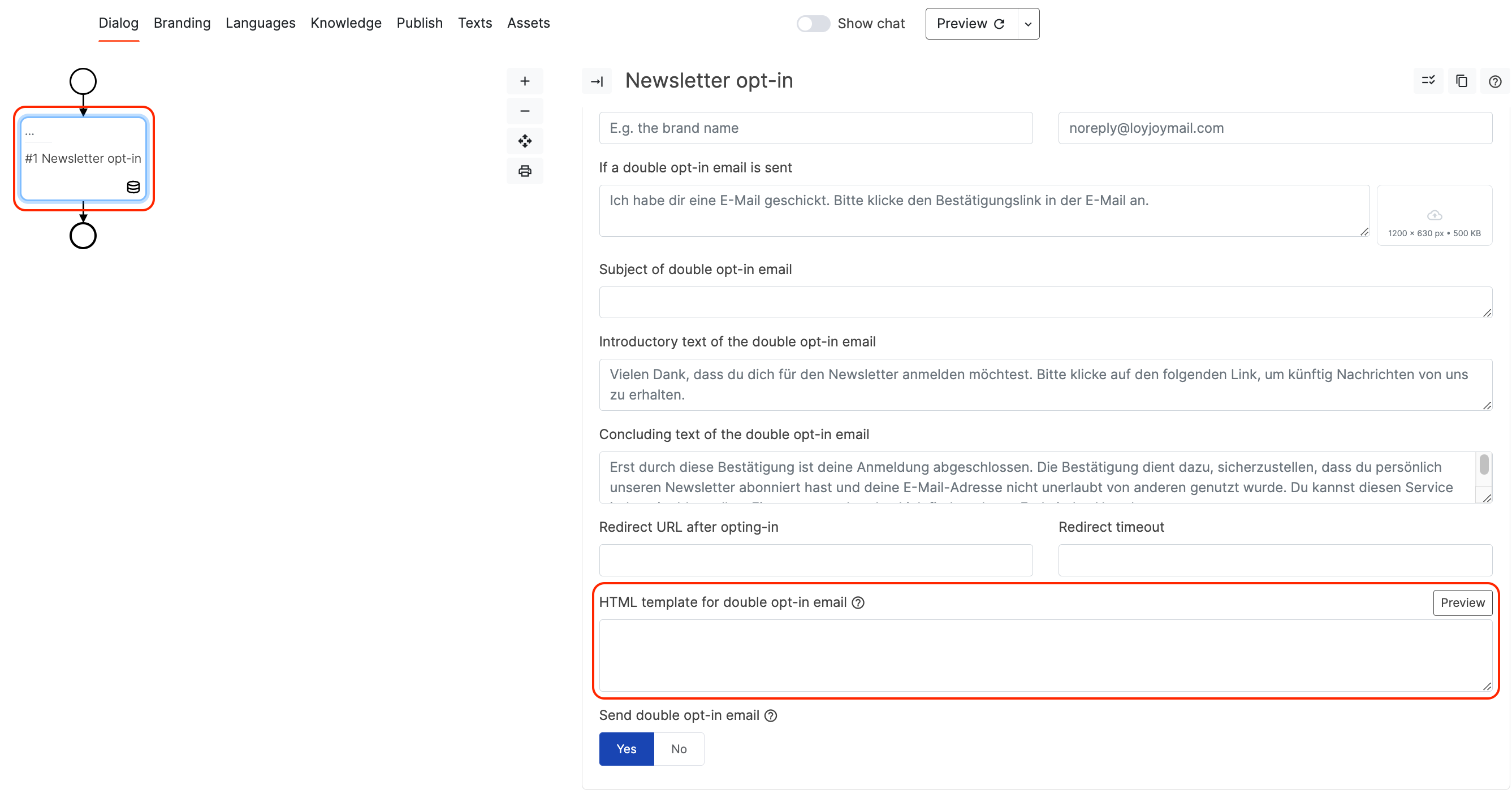
If you want to use your branded email template, simply copy your HTML into the textbox provided within the module.
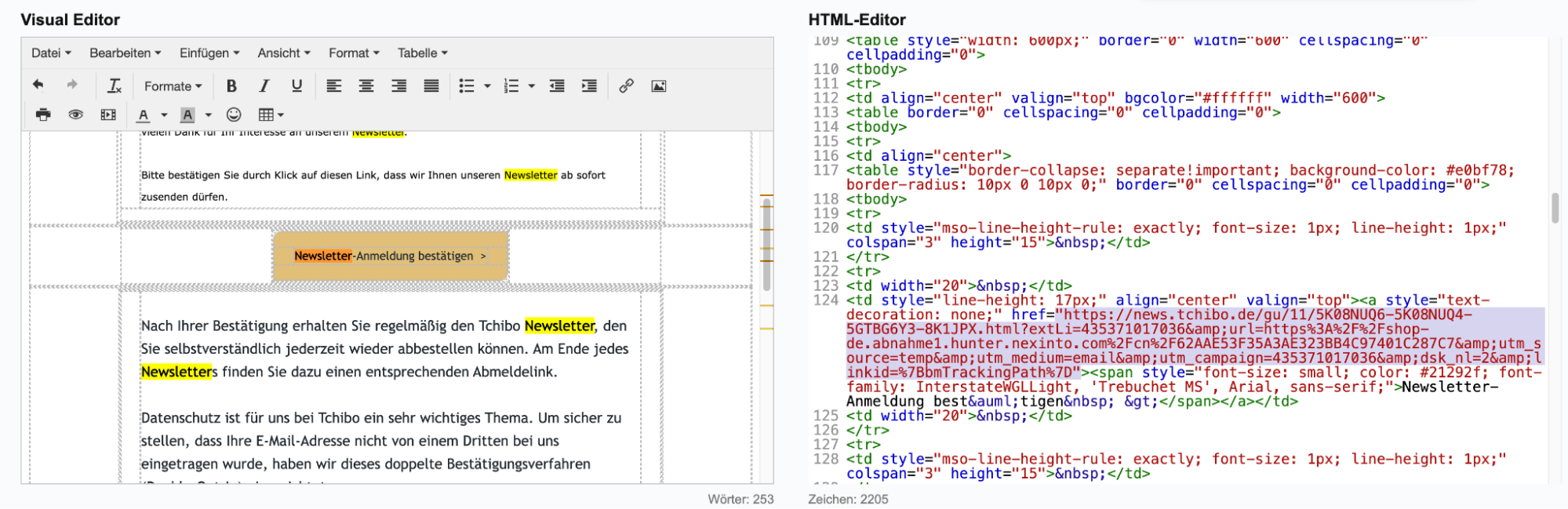
Be sure to update the confirmation link correctly. For instance, modify the link within the confirmation button to href=${add_optin_url}. This step is crucial for completing the DOI (Double Opt-In) process.
To ensure everything is set up correctly, have a look and test it within your agent. If successful, you should receive the following response:

Alternatively, you can replace the URL with one that you prefer to use. Simply paste it into the redirect section above the HTML textbox.