Process Editor
The Process Editor is the central tool where users create chatbots within the platform. With its intuitive interface, users can design conversational flows by simply dragging and dropping modules from the palette onto the canvas. This documentation provides an overview of the key features and functionalities of the Process Editor.
How to Set up a Chatbot is a step-by-step guide to creating a chatbot using the Process Editor.
Creating Chatbots
In the Process Editor, users can create chatbots (called agents in LoyJoy) by designing conversational flows using drag-and-drop modules. To get started:
- Drag modules from the module palette located on the left-hand side onto the canvas.
- Arrange the modules to define the flow of the conversation.
Removing Modules
To remove modules from the canvas:
- Simply drag the unwanted module over the palette on the left.
- Drop it onto the palette to remove it from the canvas.
Copying Modules
To copy modules or entire gateways:
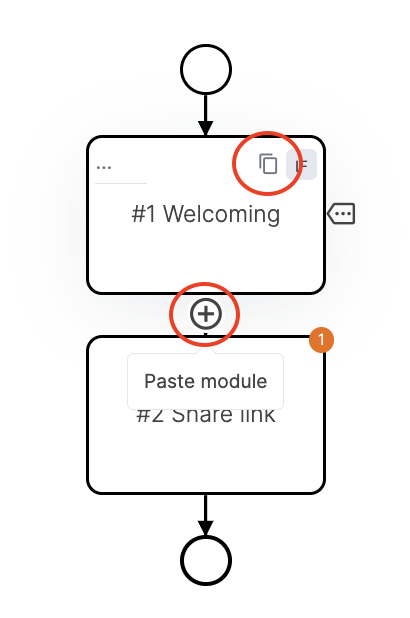
- Hover over the module or gateway you wish to copy.
- Click on the copy icon that appears.
To insert modules or entire gateways:
- hover at the end of a module and click on the plus-icon.
- Paste the copied module or gateway onto the canvas as needed.
Refreshing Preview
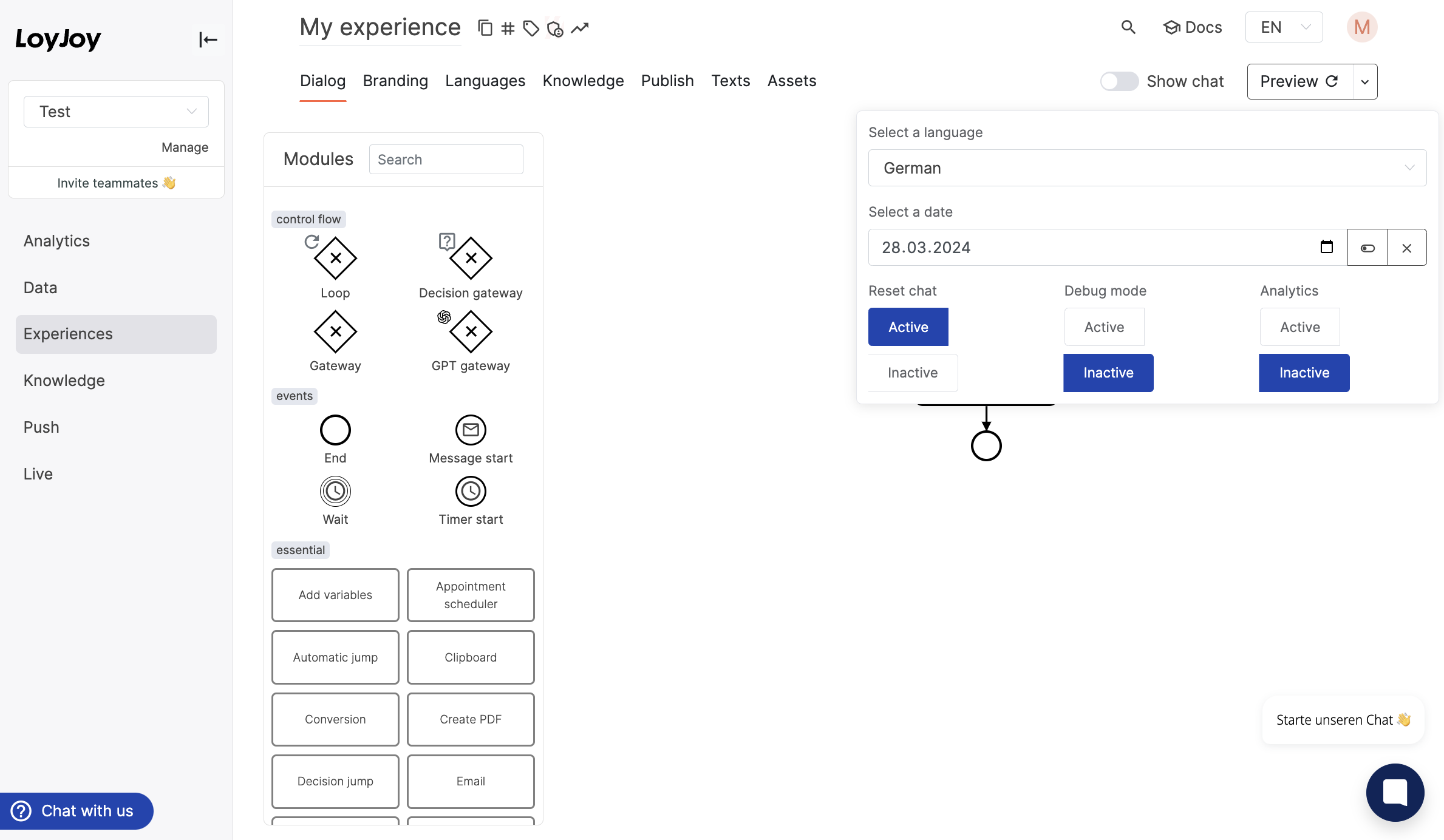
After making changes to the chatbot, users can refresh the preview to see the updated conversation flow. To refresh the preview:
- Click on the "Preview" button located on the upper right-hand side of the editor.
Optionally, you can set the date and language for previewing your chatbot.
Reset Chat
You can toggle that all Variables are resetted after clicking refreshing the preview.
Debug Mode
You can toggle the Debug mode to debug your chat flow correctly.
Analytics
You can toggle the Analytics, while testing your bot to get further insights.
Zooming In/Out
If the chatbot becomes too large to view within the window, users can zoom in or out to adjust the view. To zoom:
- Utilize the zoom controls provided on the right hand side.
- Zoom in to get a closer look at the details or zoom out to see the entire chatbot flow.
Printing your BPMN-flow
By clicking on the printer icon you can print your whole BPMN-flow or save it as a pdf. If you need to document your chatbot or share it with others, this feature allows you to easily create a physical or digital copy of your chatbot design. This feature is especially helpful for financial institutions such as banks that need to document their chatbots for regulatory compliance.
Technically it also is possible to export the BPMN flow as a .bpmn file and import it into other BPMN tools. However, BPMN gateways in LoyJoy BPMN models are not defined as sequence flows, but as nested subprocesses to enforce, that diverging BPMN gateways are always followed by converging gateways to ensure that the BPMN flow does not become too complex. This means that the exported .bpmn file may not be compatible with other BPMN tools that expect gateways to be defined as sequence flows. Therefore, we recommend using the print feature to create a PDF of your chatbot design for documentation purposes.
Model Checking
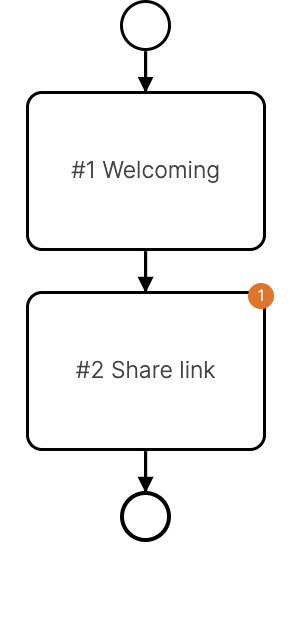
As soon as there are warnings or errors within your used models there will be bubbles on the upper right corner of the incorrect module.