Publish Your Agent
Publish Your Changes
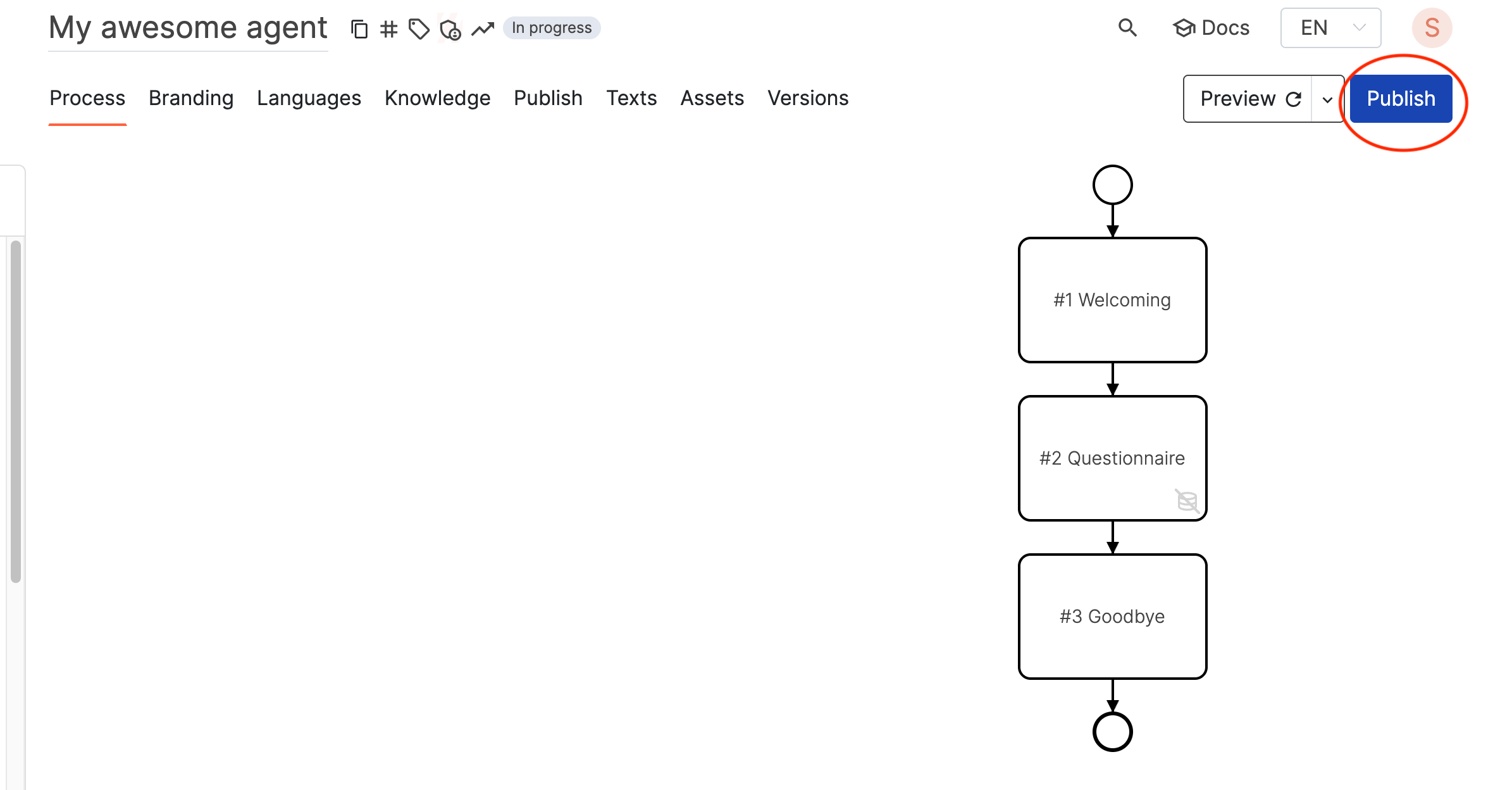
Click the publish button to create a new version of your agent and make it available to your customers. You can leave a comment to label the change for later.
Important: From September 2025, any change you make to your agent will only be visible to your customers after you publish the changes. A history of your published versions can be seen in the version tab (for Enterprise and Unlimited plans).
Due to caching, it takes about 2 minutes for the published version to be visible to your customers.
Test Your Agent
Before you go live with your agent, test it and share it with your colleagues. Choose one of the following three options to securely test the agent and gather feedback.
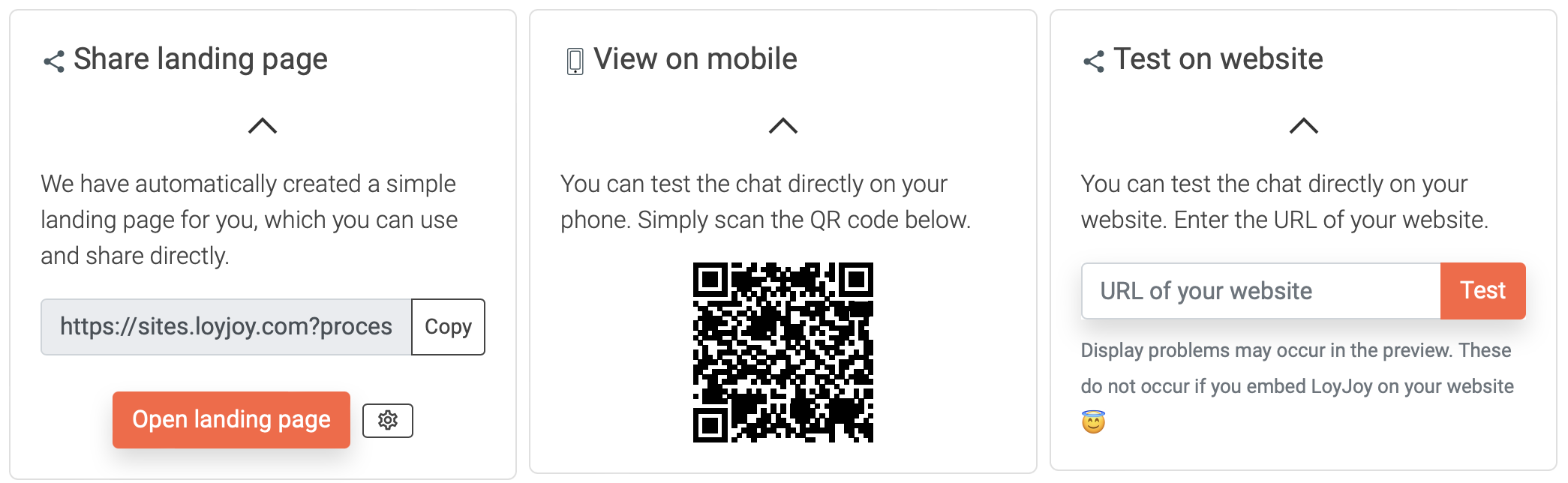
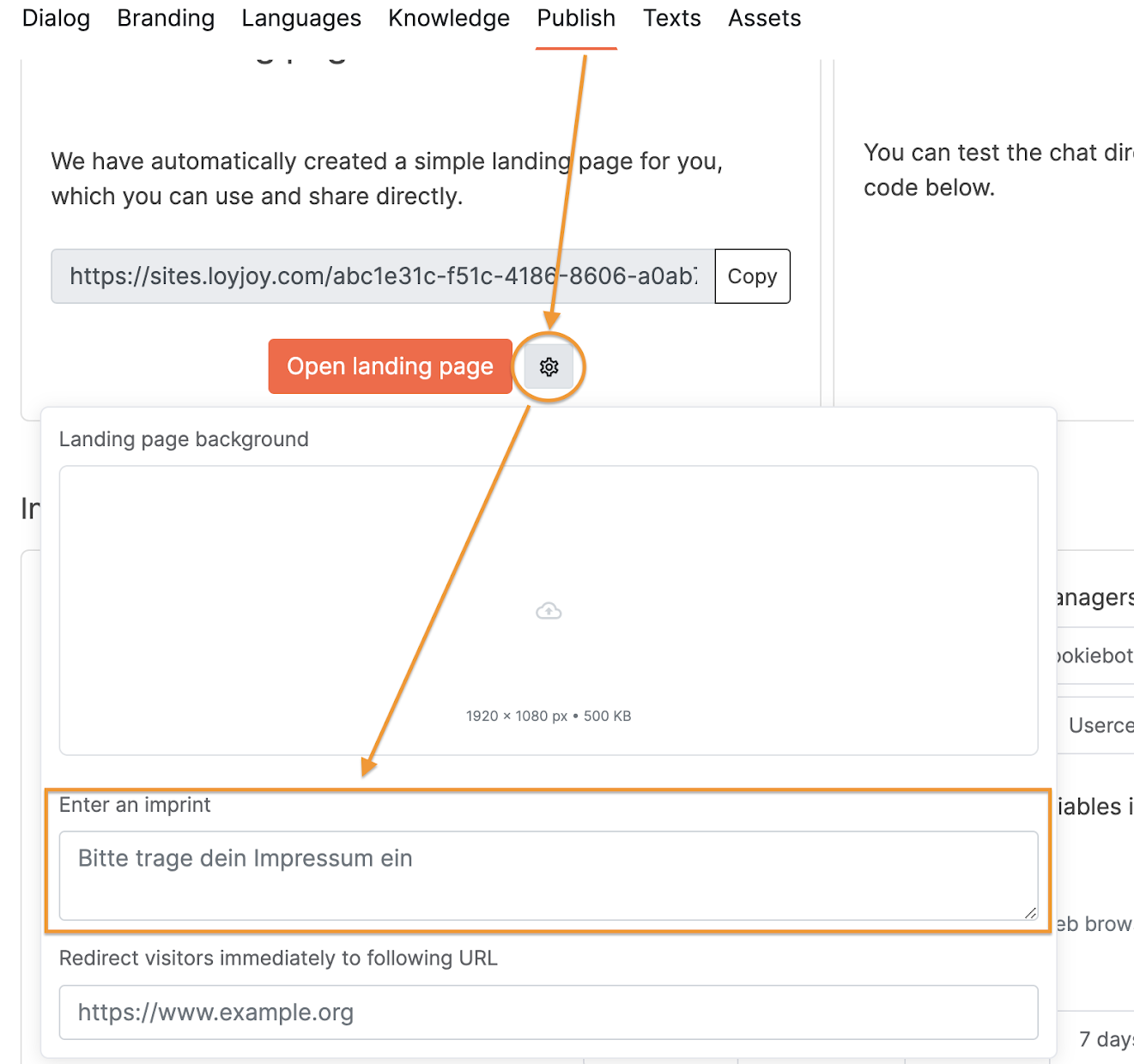
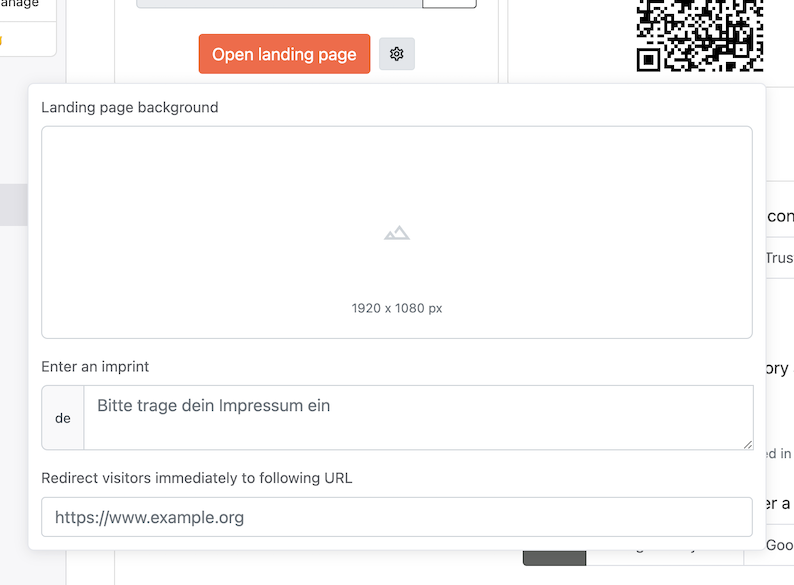
- View your agent on a built-in LoyJoy landing page. We have automatically created a simple landing page for you, which you can use and share directly. This is especially handy for publishing to social media. Click on the gearwheel to adjust the landing page to your brand with a background image and an imprint. You can also forward visitors of the landing page to a custom URL of your choice.
- To test the agent for mobile users you can review the agent on your smartphone. Just scan the QR code with your smartphone camera.
- Lastly, preview how your agent will appear on your website by entering your website URL. Note: the preview may show minor display differences. These do not occur once LoyJoy is embedded on your live website.
Integrate the Chat into Your Website
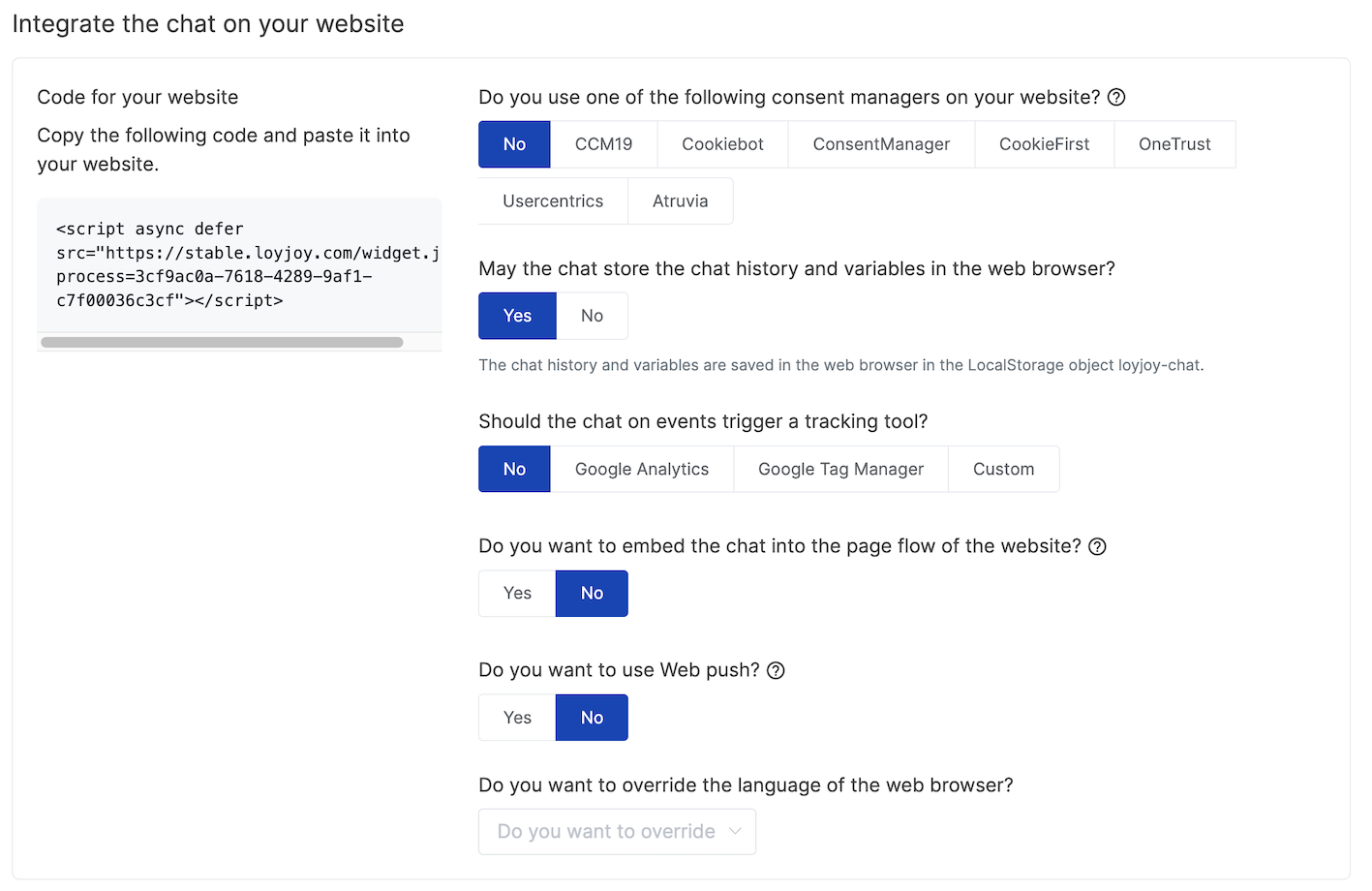
To integrate the agent into your website, copy the code snippet from the Publish tab into your website HTML. Each snippet carries a unique process ID. Do not integrate more than one agent on a single page. Running multiple active agents concurrently can lead to process conflicts and unexpected behavior. If you run a consent manager (cookie banner), place the LoyJoy snippet after the consent manager snippet in the HTML so LoyJoy can read the consent status while loading.
LoyJoy Chat does not affect the load time of the website. The LoyJoy script is executed only after the page is loaded. This is technically achieved by including the async and defer attributes, which prevent render-blocking behavior as checked by Google Chrome Lighthouse.
Here is a sample LoyJoy snippet to test the integration. Copy it to try the LoyJoy integration on your website.
<script async defer src="https://stable.loyjoy.com/widget.js?process=8dfa239f-eda1-40df-aec6-e7c6169a4233"></script>
There are many settings that can be set for the agent behavior before publishing. The snippet will change based on the settings.
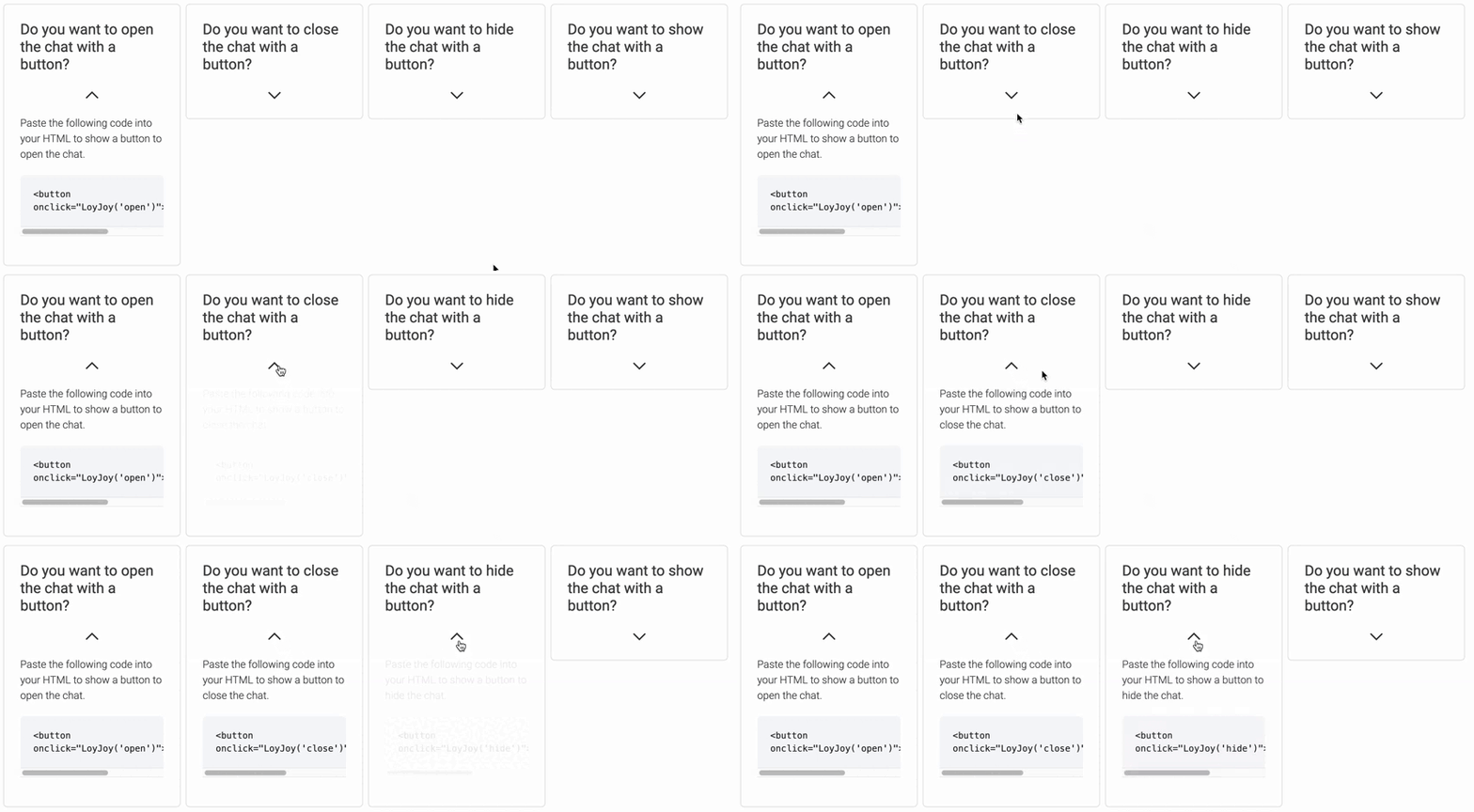
Additionally, you can open, close, hide and show the chat by adding a button that calls our JavaScript API.
Embedded Agent on your website
The standard integration of a LoyJoy agent into your website is a chat window that acts as an overlay on your website. You can also embed the chat into a div on your website. Then the chat will appear when users are scrolling to the position of the div.
The div will need to use the id "loyjoy-chat". A simple div with the chat looks like this:
<div id="loyjoy-chat" style="width:75vw;height:75vh"></div>
To ensure that the embedded chat only starts when it becomes visible, please activate the Intersection Observer. You can do this in the Branding tab of your agent in the “Conversation” area under the cogwheel in the top right-hand corner.
Create your own Website that hosts your chat
If you first need to build your own website on which the chat is embedded, please read our guide on how to create your own website with your own domain and how to embed the agent on it.
Integrate with your Consent Manager
If you have a consent manager (aka cookie banner) on your website, the LoyJoy agent can act upon the customer's selection in the cookie banner. To connect LoyJoy with your consent manager, select it in the settings. We currently support Borlabs Cookie, CCM19, Cookiebot, ConsentManager, CookieFirst, etracker, OneTrust, Sourcepoint, Tealium, Usercentrics, Atruvia, and OneConsent. If your consent manager is not supported yet, send an email to support@loyjoy.com and we will add the missing consent manager to LoyJoy for free.
In the consent manager settings, you can choose between Basic and Smart. We strongly recommend to use the Smart mode, and if your specific consent manager is missing in LoyJoy, to let us know.
- With
Basic, the LoyJoy code snippet will be adapted with parameters so that it conforms to your consent manager. Typically these parameters are the cookie category and that the widget should load after the consent manager has been closed. The disadvantage of theBasicmode is that (1) when LoyJoy is classified as an essential cookie, the LoyJoy chat will be loaded instantly, potentially colliding with the consent manager window and (2) when LoyJoy is classified as marketing cookie, the chat will not be loaded if the customer rejects such cookies. - With
Smartthese disadvantages are mitigated. LoyJoy will (1) listen for the consent manager window to complete to show the chat afterwards and (2) will show the chat in any case, however with cookies disabled if the customer rejected any cookies. There is no need to classify LoyJoy as essential, functional or marketing, as the chat will only enable cookies if all categories are consented. So generally LoyJoy recommends using theSmartmode.
Chat History and Variables
You can choose whether you want the chat to store the chat history and variables. When activated, the chat history and variables will be stored locally in the customer web browser in the local storage object loyjoy-chat. This storage stays on the customer devices and thus is only accessible to LoyJoy when the customer interacts with the chat. If you deactivate the chat history and variable storage, no data will be stored in the customer's browser and the chat will start from scratch after every website load.
When the chat history is activated, customers revisiting the website will be able to see past messages. If the chat history is not activated, a new chat flow will be started each time a user visits the website. You can select how long the chat history should be stored (off, 30 minutes, 24 hours, 7 days, 14 days).
Even if you turn the chat history off (0 minutes), the variables stored previously like name, email address, or any other information provided by the customer will still be stored in the customer's browser unless you also turn off the variable storage above.
When variables are activated, the agent can remember information provided by the customer during past interactions. This is useful for long-running conversations where the agent needs to retain context over multiple interactions (e.g., remember the name or email address entered by the customer). If variables are not activated, the agent will not be able to remember any information from past interactions.
Tracking Tool
You can integrate a tracking tool (e.g Google Analytics see here). The tracking tool will be triggered when events occur in the chat.
Web Push
In case that the agent contains a Web Push Opt-In process module, further explanations are given how to enable this capability for your website.
Social Media and native Apps
Choose one of the various Social Media (Instagram, Facebook, TikTok) or native app platforms we support to provide your Agent on different platforms for your clients.
Instagram Story
To post your agent directly into an Instagram Story, simply copy and paste the URL into the Swipe-Up link.
Facebook Story
To post your agent directly into a Facebook Story, simply copy and paste the URL into the Swipe-Up link.
TikTok Ads
To post your agent directly into a TikTok Ad, simply copy and paste the URL into the ad.
App Integration iOS
To use your agent directly into a native iOS app, simply copy and paste the URL into a WKWebView. The chat will be rendered as a web page within the app, allowing users to interact with the agent seamlessly while using the app. See the full guide: Integrate LoyJoy into a Native App.
App Integration Android
To use your agent directly into a native Android app, simply copy and paste the URL into a WebView. The chat will be rendered as a web page within the app, allowing users to interact with the agent seamlessly while using the app. See the full guide: Integrate LoyJoy into a Native App.
Insert Imprint
When publishing your agent via the LoyJoy landing page, it is mandatory in some regions to include an imprint to meet legal requirements. The imprint can be accessed in different ways, such as through emails, on the landing page, or directly within the chat interface. Here you can see how to set it up: