Store Location Search
To use the product database for location search, you can follow these steps:
1. Upload your store locations
Upload your store locations to the product database using the LoyJoy
backend. Each store location should have a unique identifier, such as a store
ID, and relevant information such as address, phone number, and opening hours.
Take special note of the title and description fields, as these are the ones
that will be shown in the chat interface. The title can be the name of the store
location, while the description can include the address and phone number. You can
also include a URL to the store's website in the url field.
Example: Here is an example table you can use when uploading store locations to the product database:
| reference_id | title | description | address | city | zip_codes | phone_number | url |
|---|---|---|---|---|---|---|---|
| 1 | Store A | 123 Main St, New York. Phone: [555-123-4567](tel:5551234567) | 123 Main St | New York | 10001,10002,10003 | 555-123-4567 | https://example.org/store-a |
| 2 | Store B | 456 Elm St, Los Angeles. Phone: [555-987-6543](tel:5559876543) | 456 Elm St | Los Angeles | 90001,90002,90003 | 555-987-6543 | https://example.org/store-b |
title: Store name (shown in chat)description: Address and phone number (shown in chat, can include Markdown links)address,city,phone_number,url: Additional fields for search/filteringzip_codes: A comma-separated list of zip codes that the store serves (used for search/filtering). You can control which store is shown for which zip code by changing the list of zip codes in this column.
You can add more stores by adding more rows to this table.
2. Search for Locations
There are various ways to search for locations in the product database, for example:
- Ask the user to enter a city or zip code and save it in a variable, which is then used to query the product database
- Add an AI Agent module with a
products_searchtool that queries the product database based on user input. The AI agent module can reply with the store information or use theproducts_displaytool to show the search results in a product gallery format.
All these methods function similarly: A variable is set to narrow down the search criteria, and the product database is queried using this variable.
3. Display the Results
Once the search is performed, you can display the results using the Product Feed module.
To do this, you need to add a Product database connector to the module and add an SQL query that uses the variable set in the previous step to filter the results. For example, if you set a variable location to the user's input, you can use the following SQL query:
SELECT * FROM products WHERE city LIKE '%${location}%' OR zip_code LIKE '%${location}%';
Example: Show a Different Store Location on Each Landing Page
To show a different store location on each landing page, you can pass a
landing page parameter to the chat agent, which is then used to set the
location variable. This way, you can display the store location that is
relevant to the landing page.
To transfer the landing page parameter to the chat agent, you can use a
query parameter in the integration script,
such as ?location=10123. In the chat agent, you can then use a Add variable module to set the location
variable based on the query parameter:
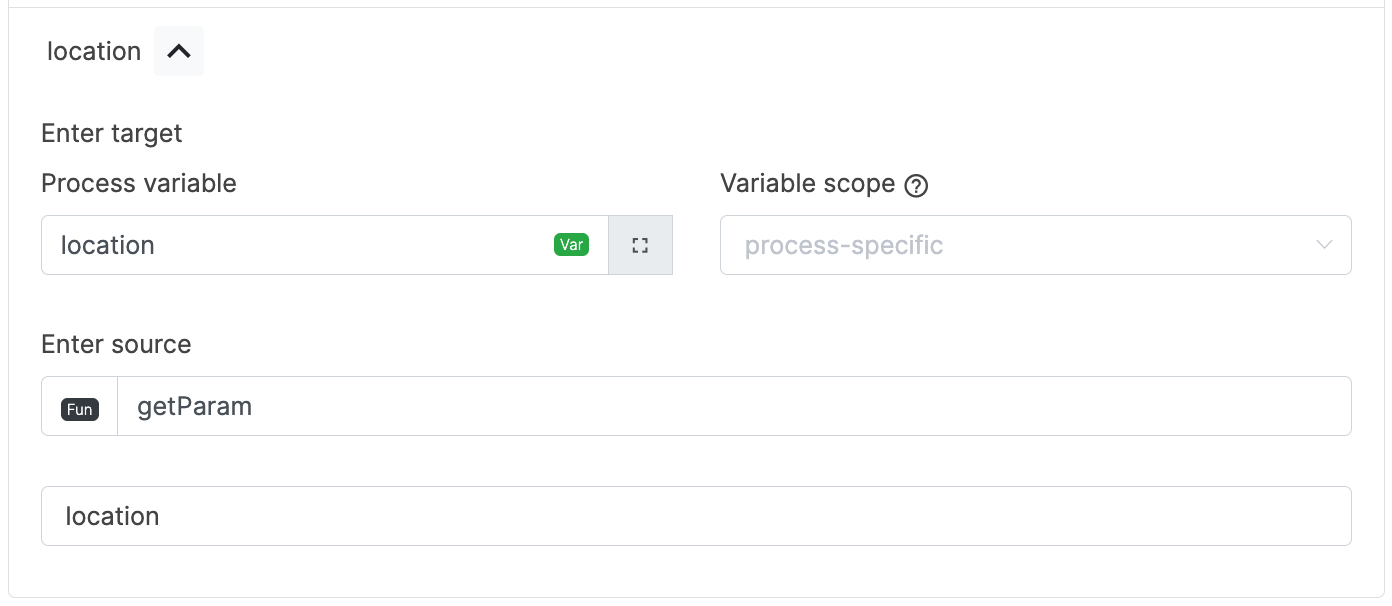
When the location variable is set, you can use the Product Feed module to
display the store location based on the location variable. The SQL query in
the Product Feed module can then be adjusted to filter the results based on
the location variable, as shown in the previous example.
SELECT * FROM products WHERE location_id = '${location}';