Connect Claude Cowork (and other MCP clients) to LoyJoy
This guide shows how to wire LoyJoy into a Model Context Protocol (MCP) client so that the client can call LoyJoy tools directly. The detailed steps below are for the Claude Cowork desktop app; OpenAI ChatGPT Codex, Microsoft Cowork, Google Gemini, and any other compliant MCP client are set up the same way.
The LoyJoy MCP endpoint exposes tenant-wide tools (knowledge, processes, analytics) to the connected client. Authentication is handled via a regular Passkey login to your LoyJoy tenant; no API key or manual token management is required.
This guide covers two things, and they build on each other. First you connect a client so it can read and query your tenant from the chat. Second, and optional, you install the LoyJoy skills so that Claude can also edit your agents for you. The connector setup comes first; editing your agents is described separately in Edit your agents with Claude.
Looking for a single AI Agent exposed as an MCP server (per-agent URL with API-key auth) instead? See LoyJoy Agent as MCP Server for that use case.
Setup in 3 minutes: Claude Cowork
Step by step with the Claude Cowork desktop app (Mac or Windows):
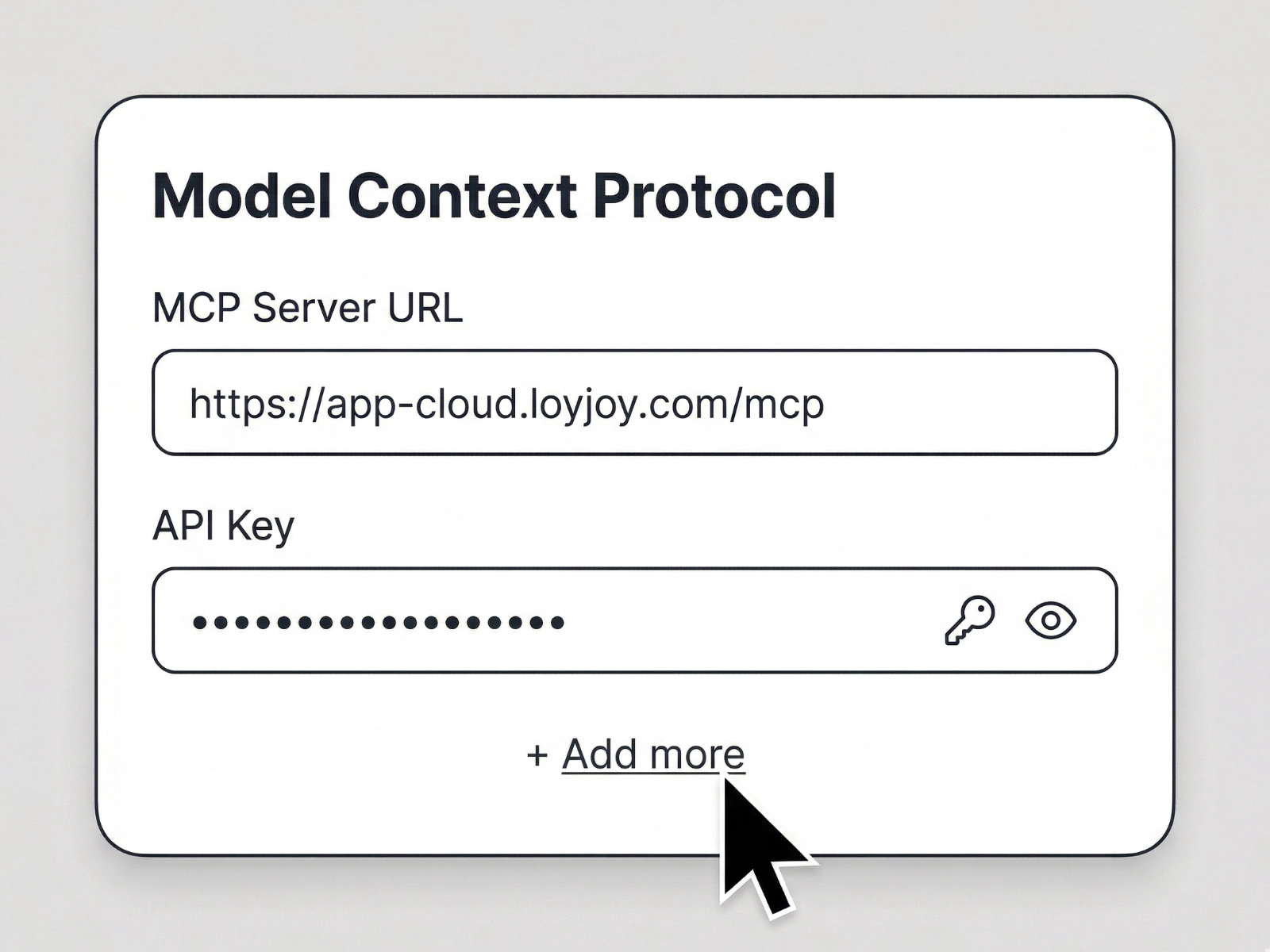
- Open Settings — In the Claude Cowork desktop app (Mac or Windows), open Settings and navigate to "Connectors".
- Add a connector — Create a new custom connector, give it a name (for example "LoyJoy MCP"), enter
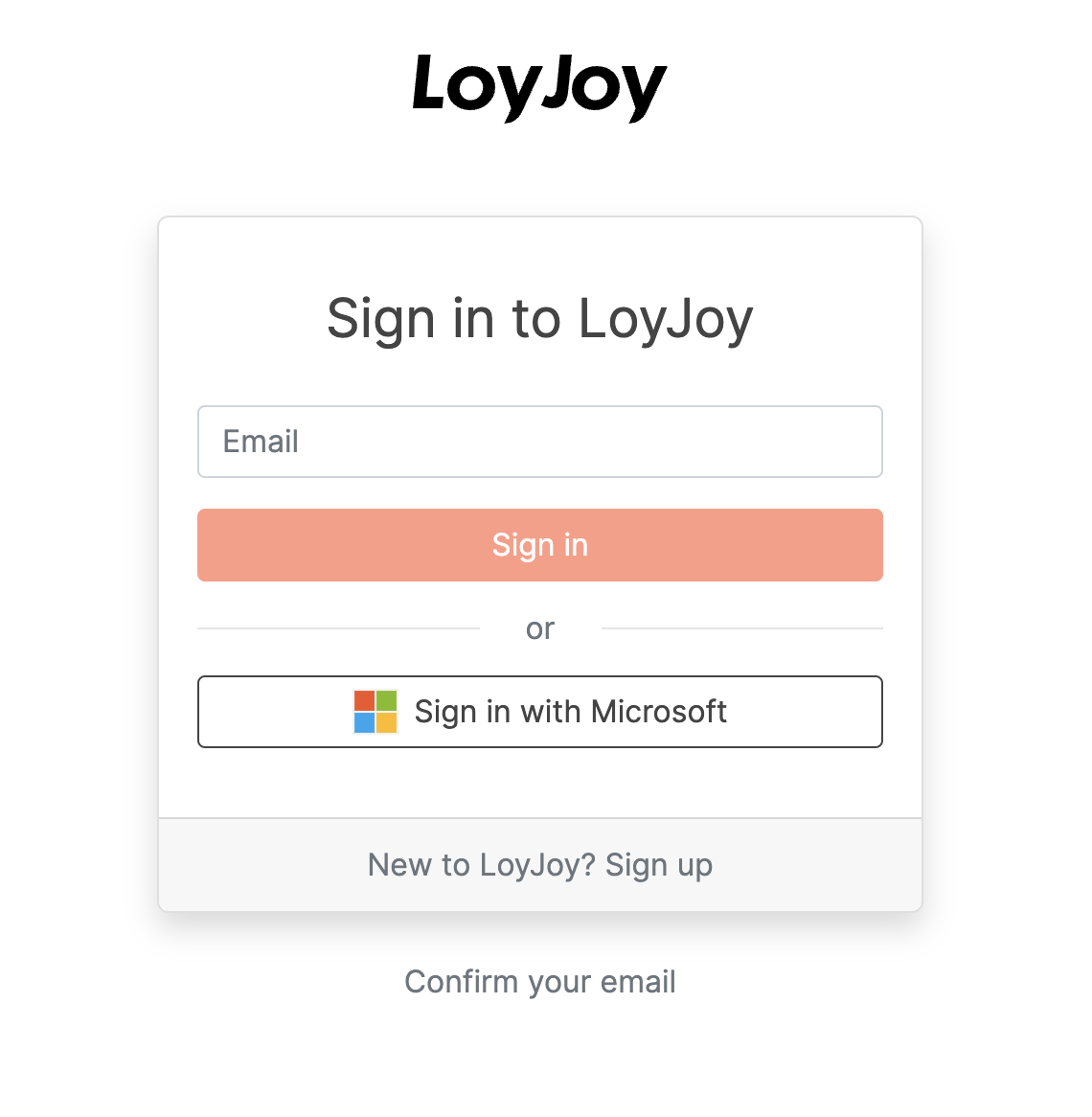
https://app-cloud.loyjoy.com/mcpas the URL, and click "Add". - Log in and get started — Claude Cowork opens the LoyJoy login screen. Sign in with your Passkey as usual; LoyJoy MCP is now available in Claude Cowork. A good first prompt: "Show me all tools from LoyJoy."
Setup for OpenAI ChatGPT with Codex
The flow is identical: in the ChatGPT settings, open "Connectors", add a custom connector with the same URL https://app-cloud.loyjoy.com/mcp, authenticate against your LoyJoy tenant with your Passkey, and the Codex agent picks up the same MCP tools as Claude Cowork.
Setup for Microsoft Cowork, Google Gemini, and other MCP clients
Microsoft Cowork, Google Gemini, and any compliant MCP client are configured the same way: add a custom MCP connector pointing to https://app-cloud.loyjoy.com/mcp and authenticate via Passkey. The available tools and their schemas are advertised by the LoyJoy MCP server itself and appear automatically once the connection is established.
What you can do next
Once the connection is live, the client can query your tenant directly from the chat. Typical first prompts:
- "Show me all AI Agents in my tenant."
- "How many customer requests did agent X resolve end-to-end in the last 30 days?"
- "List the most-used knowledge articles this month."
For more complex rollouts such as SSO, team access concepts, or multiple tenants, a dedicated LoyJoy project manager guides the setup from the first idea through to go-live.
Edit your agents with Claude
The setup above lets a client read and query your tenant. Editing your agents is a separate, optional capability that builds on the same connection. With the LoyJoy skills installed, you describe a change in plain language and Claude applies it to your agent through the LoyJoy MCP connector, No-Code. This requires the connector from the previous sections to be set up.
Install the LoyJoy skills
Add the LoyJoy Marketplace to Claude Cowork as a plugin marketplace and install the LoyJoy skills from there:
- In Claude Cowork, open Settings.
- In the sidebar select Plugins.
- Click Add, then Add Marketplace.
- Paste
loyjoy/loyjoy-skills. - Add all available skills by clicking the plus sign.
- Start editing your agents, for example: "In LoyJoy edit the agent 'Live Chat'. Set the opening hours to 10am to 6pm."
Once installed, the LoyJoy skills are available in Claude Cowork.
Start from the process editor
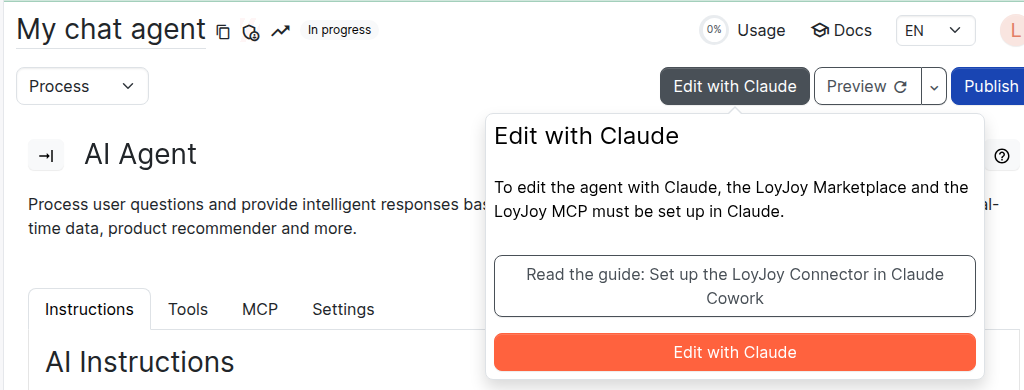
With the LoyJoy Marketplace and MCP connector set up, you can start an edit in claude. In the process editor of any agent, open the Edit with Claude control in the editor navigation. It shows a short note about the required setup, a link back to this guide, and an Edit with Claude button that opens Claude with a prompt already referencing the current agent by name. Add your change requests to that prompt and Claude applies them through the LoyJoy MCP connector.