How to Set Up a Phone Agent
A LoyJoy Phone Agent can be set up in just a few minutes. Thanks to speech-to-speech technology the conversations feel natural, and the shipped defaults let you get started without deep prior knowledge.
Step-by-step setup
-
Create a new agent: After signing in, open the admin area, click New Agent and select Phone Agent. See New Agent for the full list of agent creation options.
-
Configure the AI Agent module: This is where the instructions for the AI (the prompt) live. Sensible defaults are pre-filled so you can start right away. You can edit the prompt as free text or use the prepared dropdowns, for example to set the Personality of your agent.
-
Enable tools:
- Knowledge Search: Enabled by default. Add a short description of what is available in your knowledge base, then use the checkboxes to control which data sources the agent may access. The knowledge base is filled in advance with website content and documents. See AI and Retrieval Augmented Generation.
- Web research: Optional. Activate it if you want your agent to look things up on the internet.
- MCP tools: Connect any number of additional tools via the Model Context Protocol to extend the agent's capabilities. See LoyJoy Agent as MCP Server.
-
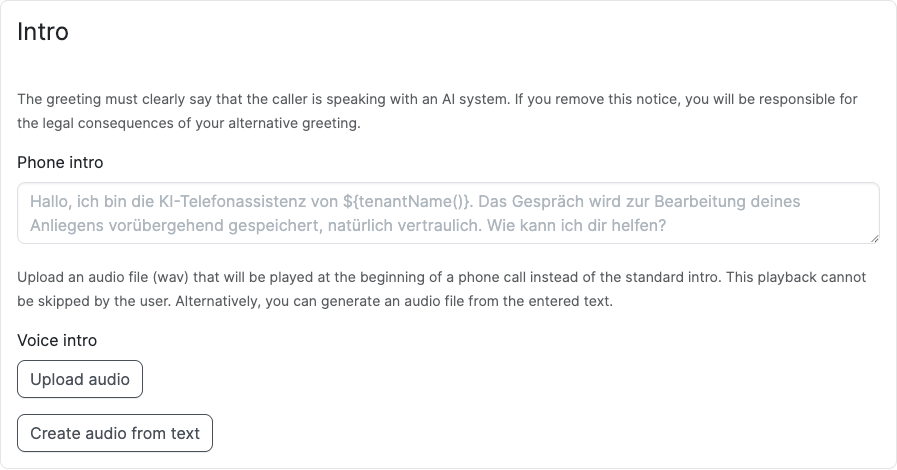
Configure the call intro: In the AI Agent module, set the greeting the agent plays at the beginning of every call. You have three options:
- Text intro (default): Type the greeting as text. It is spoken by the configured voice. See Texts.
- Audio upload: Upload a
.wavfile that is played at the start of the call instead of the text intro. This playback cannot be skipped by the caller. - Create audio from text: Generate an audio file directly from your intro text with one click.
The intro must clearly state that the caller is speaking with an AI system. If you change this notice, you are responsible for the legal assessment of your greeting.
-
Choose a language: German and English are currently supported. More languages will follow soon. See Languages in LoyJoy.
-
Publish: Release your current changes in the Publish section. See Publish Your Agent.
Testing and going live
-
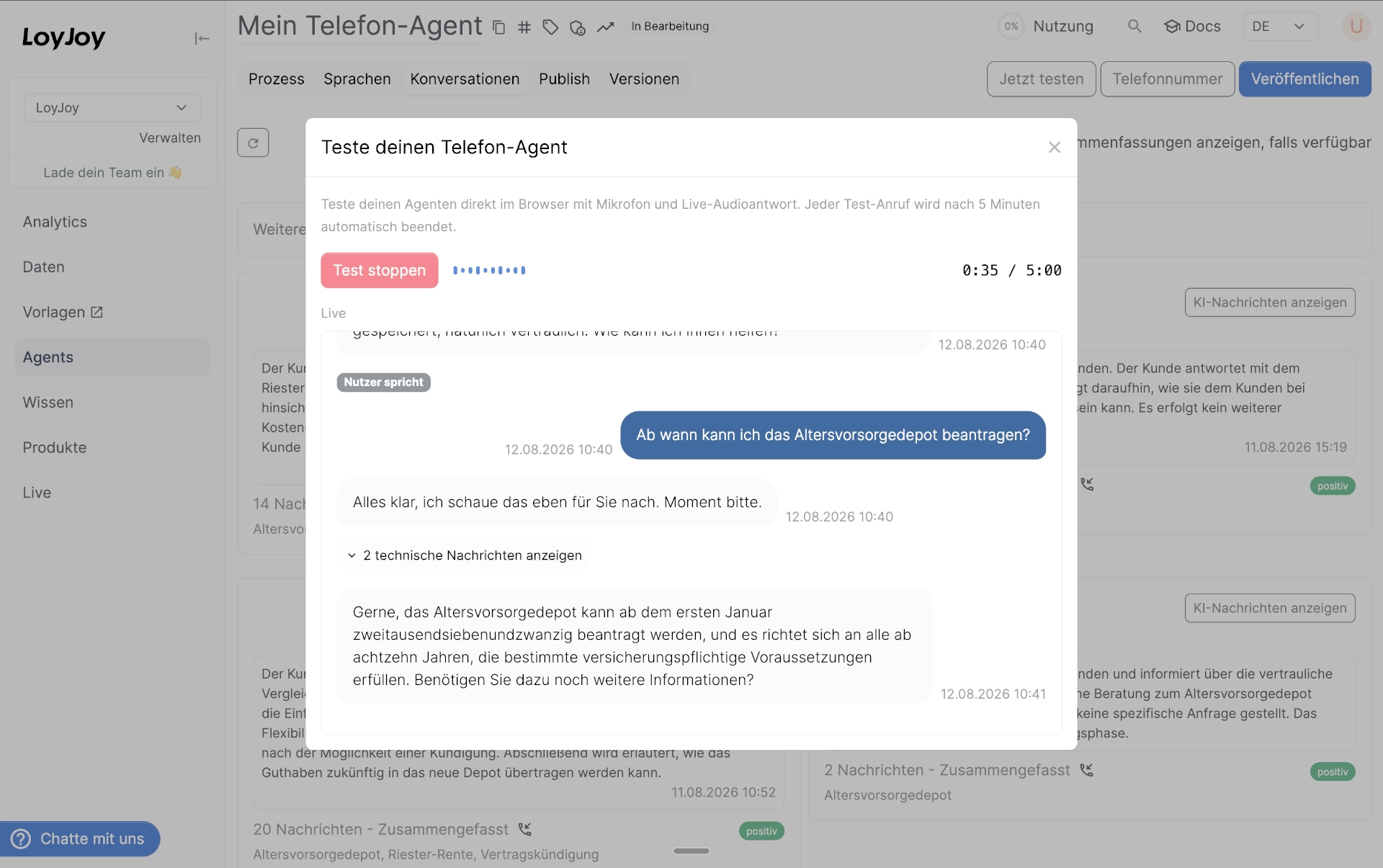
Test instantly: Use the Test button in the admin area to talk to your agent right away, without any additional configuration. The test runs directly in the browser with microphone input and a live transcript, no phone call required.
-
Phone numbers: Once a phone number is linked to your agent, it is shown in the Publish section and as a badge on the agent's card in the process overview.
-
More integrations: Connections to your existing telephony infrastructure via SIP and Websocket are in preparation. For background see Telephony Integration & Architecture.
-
LoyJoy demo: The phone number of the LoyJoy Phone Agent is shown directly on the LoyJoy website. Call it to experience the agent in action.
Reviewing conversations
The Conversations section gives you access to all calls handled by your agent. Listen to recordings and analyze content to systematically improve quality and identify optimization potential.
If you do not want call audio to be stored, enable Prevent audio log in the telephony settings of the Publish section. With this option active, no audio recording is kept for the calls.
Tips
- Start with the defaults and validate your agent via the Test button before fine-tuning prompt and tools.
- Carefully populate your knowledge base with website content and documents up front. It is the single most important quality lever for your agent's responses. See AI.
- After the first test calls, review the conversations and iteratively refine both the prompt and the knowledge search description.