Set Up a Phone Number for Your Phone Agent
Set up a dedicated phone number for your Phone Agent. Calls to this number go straight to the agent, so you and your colleagues can call it, for example to test it before go-live or to run a prototype. LoyJoy provides the number, and you set it up yourself in the LoyJoy Platform in a few clicks. No carrier contract, call forwarding or telephony setup on your side is needed.
Before you start
- You have created a Phone Agent. See How to Set Up a Phone Agent.
- You have tested the agent in the browser with Test now.
- Your account has access to the tenant settings.
Step-by-step
1. Open the phone number settings from your agent
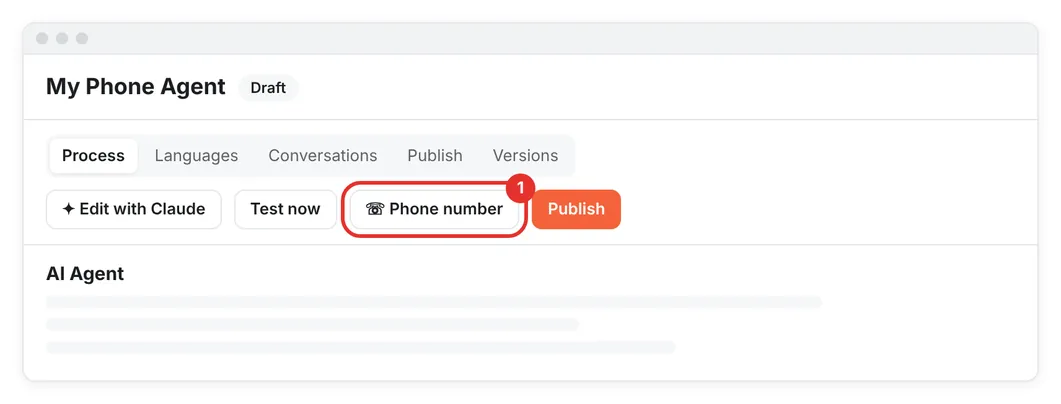
Open your Phone Agent in the admin area and click Phone number in the top bar. This takes you to the Phone numbers tab in your tenant settings.
2. Create a number for your tenant
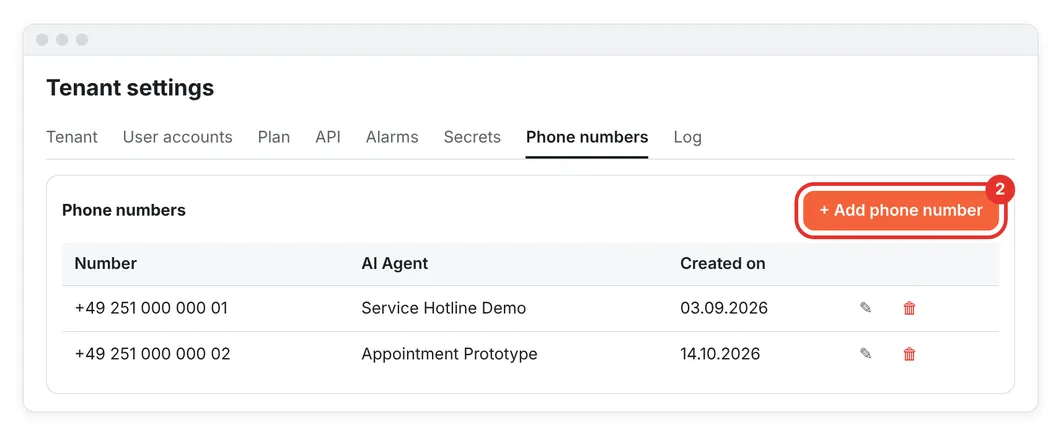
Click + Add phone number. LoyJoy provides a new number for your tenant and adds it to the list. The number is not connected to an agent yet.
3. Connect the number to your agent
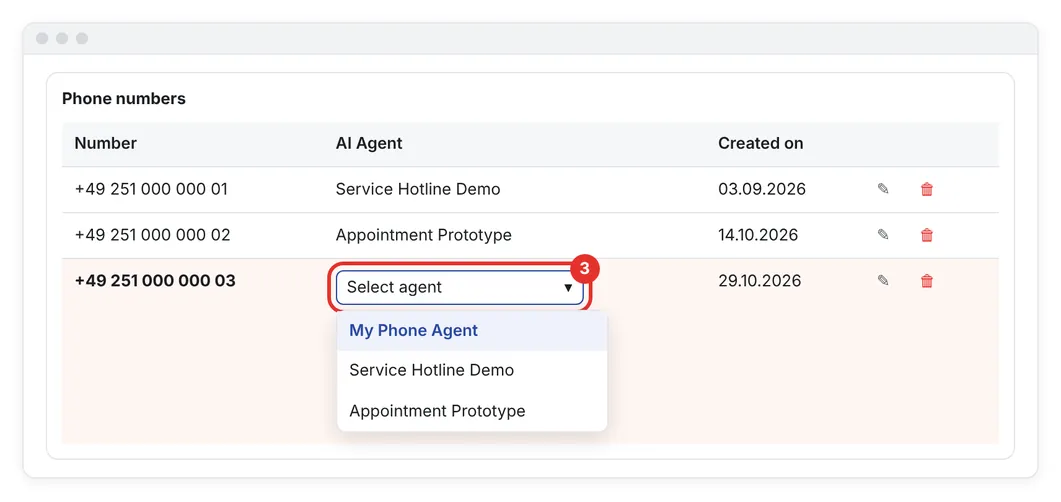
Click the pencil icon next to the new number, select your Phone Agent under AI Agent and save. From now on, calls to this number are answered by this agent.
4. Check the assignment
Back in the agent overview, the number appears as a badge on your agent's card. You also find it in the Publish section of the agent.

5. Make a test call
- Publish your agent if you have unpublished changes. Callers reach the published version.
- Call the number from any phone.
- Review the call under Conversations, including recording and transcript.
Change or remove a number
| Task | How |
|---|---|
| Assign a number to another agent | Click the pencil icon and select a different agent. The previous agent no longer receives calls on this number. |
| Remove a number | Click the trash icon. The number is released and can no longer be called. |
Good to know
- Your call intro must tell callers that they are speaking with an AI system. See How to Set Up a Phone Agent.
- To avoid storing call audio, enable Prevent audio log in the telephony settings of the Publish section.
- Want to connect your own hotline or phone system instead? See Telephony Integration & Architecture.
- If you cannot add a number, contact us.