Using the Tag Recommender
The tag recommender feature provides customers with the most relevant product listings, enhancing their shopping agent.
The tag recommender is less powerful than SQL-based filtering and should only be used for simple use cases. For more complex filtering, we recommend using SQL-based filters in the connectors.
Enabling the Tag Recommender
To activate the tag recommender, follow these steps:
- Navigate to the Product Feed Module.
- Scroll to the top of the page.
- You will find three options: Off, Filter, and Smart. By default, the recommender is turned off.
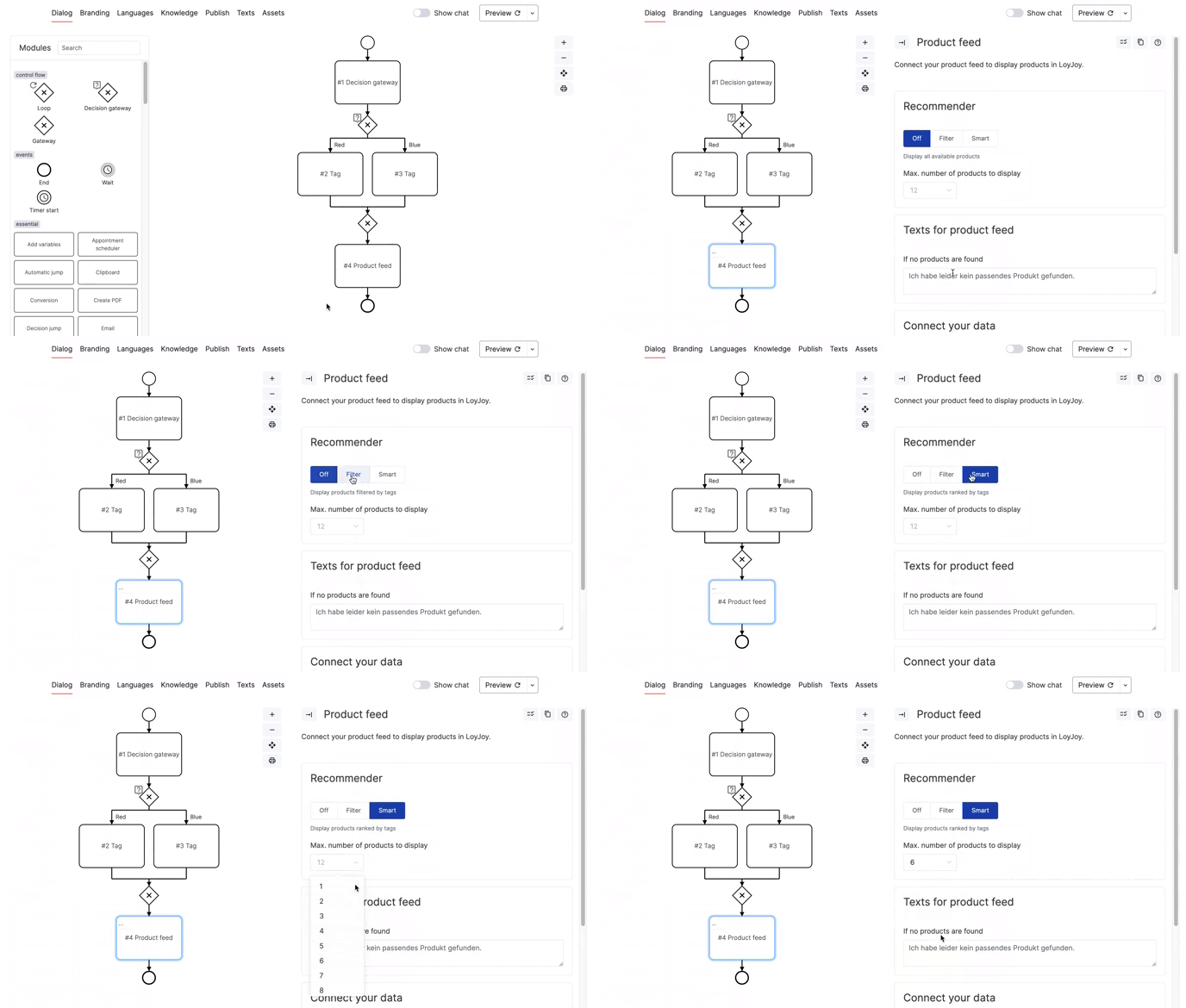
Tag Recommender Options
The tag recommender offers three distinct options:
1. Off
When set to "Off," all products are displayed, regardless of the assigned tags and customer preferences. This option provides an unfiltered view of your products.
2. Filter
Selecting the "Filter" option displays only those products with exact matching tags. Products without matching tags are not shown, ensuring precise product recommendations.
3. Smart
With the "Smart" option, products are sorted based on the number of matching tags. Products with more matching tags are displayed first, offering a personalized and tailored shopping agent.
The variable product_feed_result_count will be set to tell you how many products where found in the product feed with the filter applied, if applicable.
Show Maximum One Product per Group
You can choose to display a maximum of one product per group by using the "group" column in your data source. This feature helps avoid showing multiple products from the same group, providing a more diverse product list.
| title | description | header | tags | price | image_url | url | group |
|---|---|---|---|---|---|---|---|
| Product 1 | Description 1 | Header 1 | tag1, tag2 | price_1 | link_to_image_1 | link_to_product_1 | group1 |
| Product 2 | Description 2 | Header 2 | tag3 | price_2 | link_to_image_2 | link_to_product_2 | group1 |
| Product 3 | Description 3 | Header 3 | tag1, tag3 | price_3 | link_to_image_3 | link_to_product_3 | group2 |
When the option "Show maximum one product per group" is enabled, only one product from each group will be displayed. For example, if both Product 1 and Product 2 match the customer's preferences, only one of them will be shown.
Configuring Tags
To maximize the recommender's effectiveness, it's essential to incorporate tags into your chatflow:
- When creating your chatflow, add relevant tags using the Tag Module. This ensures that the recommender comprehends user preferences.
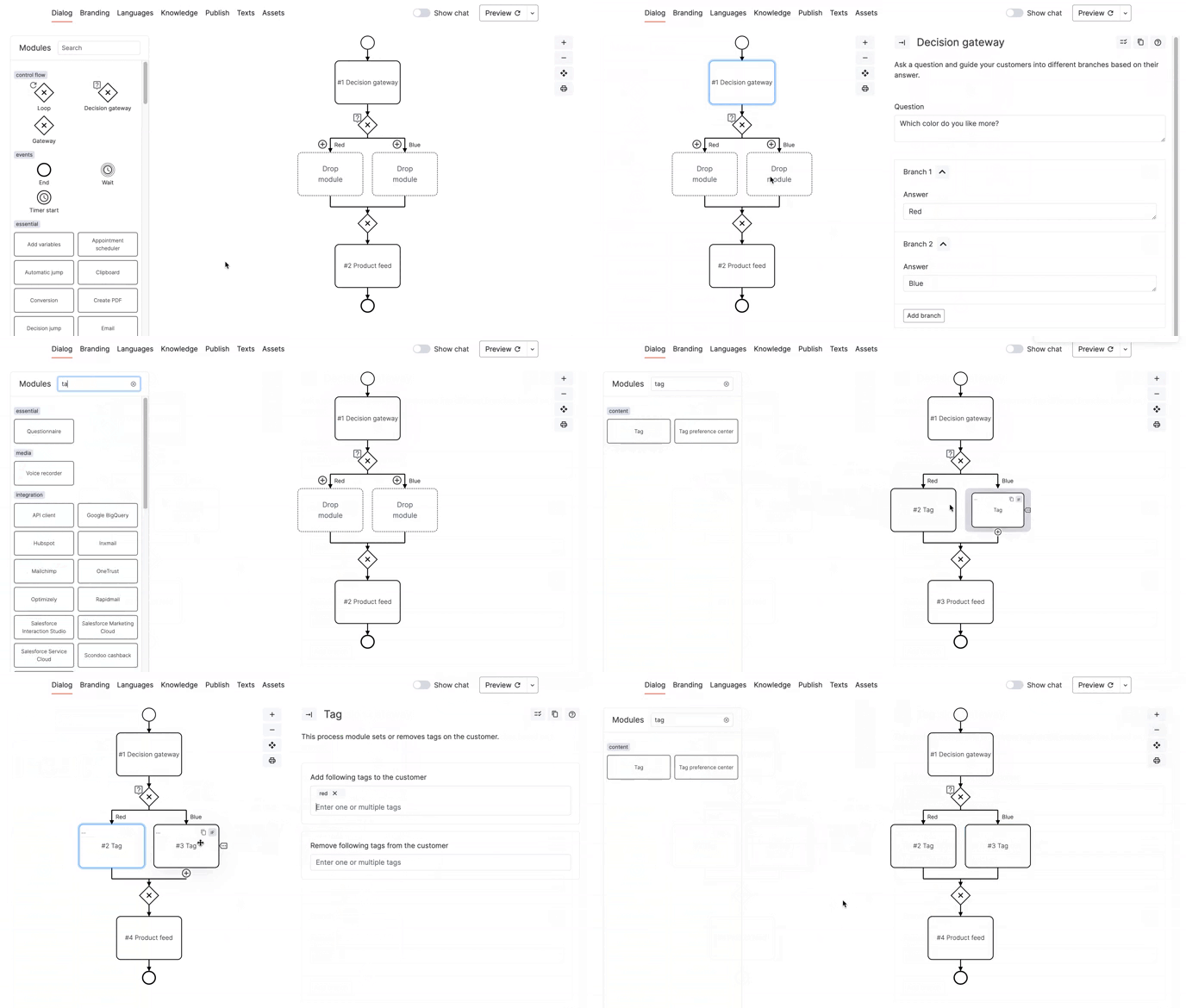
- Associate tags with your products by editing the "tags" section in your Google Sheet.