Scanner Module
Introduction
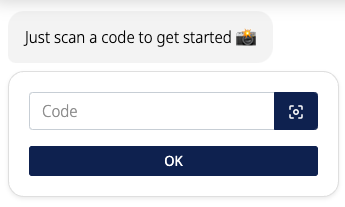
The Scanner module enables your customers to scan QR codes or barcodes using their device's camera or manually enter the code if they prefer. This ensures that all users can interact with your products, regardless of their device capabilities or personal preference.
Typical Use Cases
This module is useful for providing additional product information, such as ingredients, origin details, or installation videos.
How to Use the Module
Guiding the Customer
Tell your customer where to find the code and that they can either scan it using their device's camera or manually enter it into the provided field. Including a picture to illustrate this can be helpful.
Customizing Responses
- Categories: Use categories to differentiate responses based on the scanned or entered code. Each unique response requires a separate category.
- Response Types: For each category, set up one of the following response types:
- Text response with an animation
- Video response
- Automatic or decision jump to another module
Optional Settings
You can enable an option to allow customers to skip the scanning step if they prefer.

Useful tips
The following variable is created in this module: ${scanner_code}. This variable can be used to reference the scanned or entered code in subsequent steps or responses.
Process-Specific Variables
This module generates variables that are accessible throughout the current process. They are only valid for this specific process and may evolve with platform updates. For a detailed list, check the process-specific variables list.